

Export From Phoenix To Arize

LLM Application Tracing & Evaluation Workflows
Exporting from Phoenix to Arize
This guide demonstrates how to use Arize for monitoring and debugging your LLM using Traces and Spans. We're going to use data from a Langchain agent.
In this tutorial we will:
- Build a simple Langchain agent
- Set up Phoenix as a trace collector for the Langchain application
- Use Phoenix's evals library to compute LLM generated evaluations of our agent's responses
- Use arize SDK to export the traces and evaluations to Arize
You can read more about LLM tracing in Arize here.
Step 1: Install Dependencies 📚
Let's get the notebook setup with dependencies.
Step 2: Set up Phoenix as a Trace Collector in our LLM app
To get started, launch the phoenix app. Make sure to open the app in your browser using the link below.
Once you have started a Phoenix server, you can start your Langchain application and configure it to send traces to Phoenix. To do this, you will have to instantiate Phoenix's LangChainInstrumentor.
That's it! The Langchain application we build next will send traces to Phoenix.
Step 3: Build Your Langchain Application 📁
We start by setting your OpenAI API key if it is not already set as an environment variable.
We will build a sample math agent as an example.
Let's chat with our agent!
Great! Our application works!
Step 4: Use the instrumented Agent
Step 5: Run Evaluations on the data in Phoenix
We will use the phoenix client to extract data in the correct format for specific evaluations and the custom evaluators, also from phoenix, to run evaluations on our Langchain Agent.
Next, we enable concurrent evaluations for better performance.
Then, we define our evaluators and run the evaluations
Finally, we log the evaluations into Phoenix
Step 6: Export data to Arize
Step 6.a: Get data into dataframes
We extract the spans and evals dataframes from the phoenix client
Step 6.b: Initialize arize client
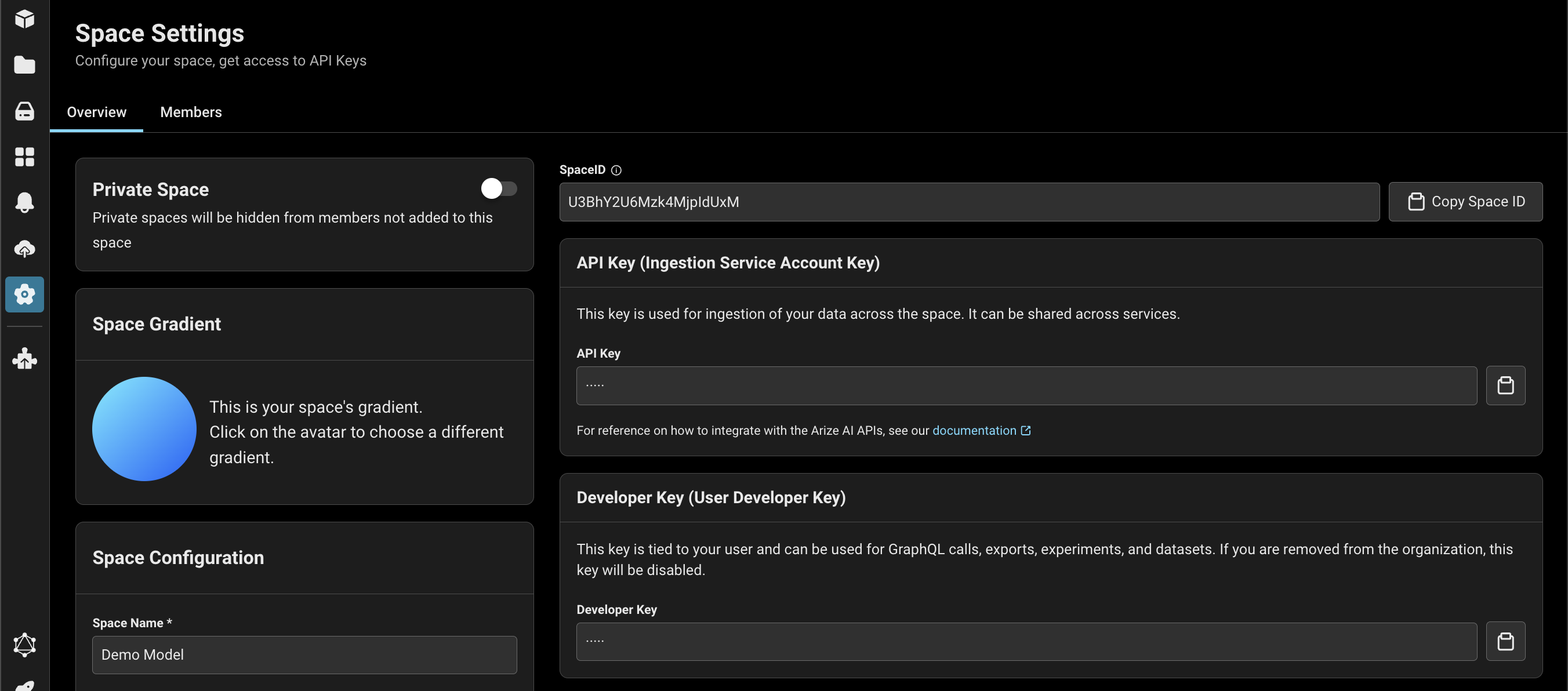
Sign up/ log in to your Arize account here. Find your space ID and API key. Copy/paste into the cell below.
Lastly, we use log_spans from the arize client to log our spans data and, if we have evaluations, we can pass the optional evals_dataframe.