

Llamaindex Evals

LLM Application Tracing & Evaluation Workflows
Exporting from Phoenix to Arize
This guide demonstrates how to use Arize for monitoring and debugging your LLM using Traces and Spans. We're going to use data from a chatbot built on top of Arize docs (https://docs.arize.com/arize/), with example query and retrieved text. Let's figure out how to understand how well our RAG system is working.
In this tutorial we will:
- Build a RAG application using Llama-Index
- Set up Phoenix as a trace collector for the Llama-Index application
- Use Phoenix's evals library to compute LLM generated evaluations of our RAG app responses
- Use arize SDK to export the traces and evaluations to Arize
You can read more about LLM tracing in Arize here.
Step 1: Install Dependencies 📚
Let's get the notebook setup with dependencies.
Step 2: Set up Phoenix as a Trace Collector in our LLM app
To get started, launch the phoenix app. Make sure to open the app in your browser using the link below.
Once you have started a Phoenix server, you can start your LlamaIndex application and configure it to send traces to Phoenix. To do this, you will have to add configure Phoenix as the global handler
That's it! The Llama-Index application we build next will send traces to Phoenix.
Step 3: Build Your Llama Index RAG Application 📁
We start by setting your OpenAI API key if it is not already set as an environment variable.
This example uses a RetrieverQueryEngine over a pre-built index of the Arize documentation, but you can use whatever LlamaIndex application you like. Download the pre-built index of the Arize docs from cloud storage and instantiate your storage context.
We are now ready to instantiate our query engine that will perform retrieval-augmented generation (RAG). Query engine is a generic interface in LlamaIndex that allows you to ask question over your data. A query engine takes in a natural language query, and returns a rich response. It is built on top of Retrievers. You can compose multiple query engines to achieve more advanced capability.
Let's test our app by asking a question about the Arize documentation:
Great! Our application works!
Step 4: Use the instrumented Query Engine
We will download a dataset of questions for our RAG application to answer.
We use the instrumented query engine and get responses from our RAG app.
To see the questions and answers in phoenix, use the link described when we started the phoenix server
Step 5: Run Evaluations on the data in Phoenix
We will use the phoenix client to extract data in the correct format for specific evaluations and the custom evaluators, also from phoenix, to run evaluations on our RAG application.
Next, we enable concurrent evaluations for better performance.
Then, we define our evaluators and run the evaluations
Finally, we log the evaluations into Phoenix
Step 6: Export data to Arize
Step 6.a: Get data into dataframes
We extract the spans and evals dataframes from the phoenix client
Step 6.b: Initialize arize client
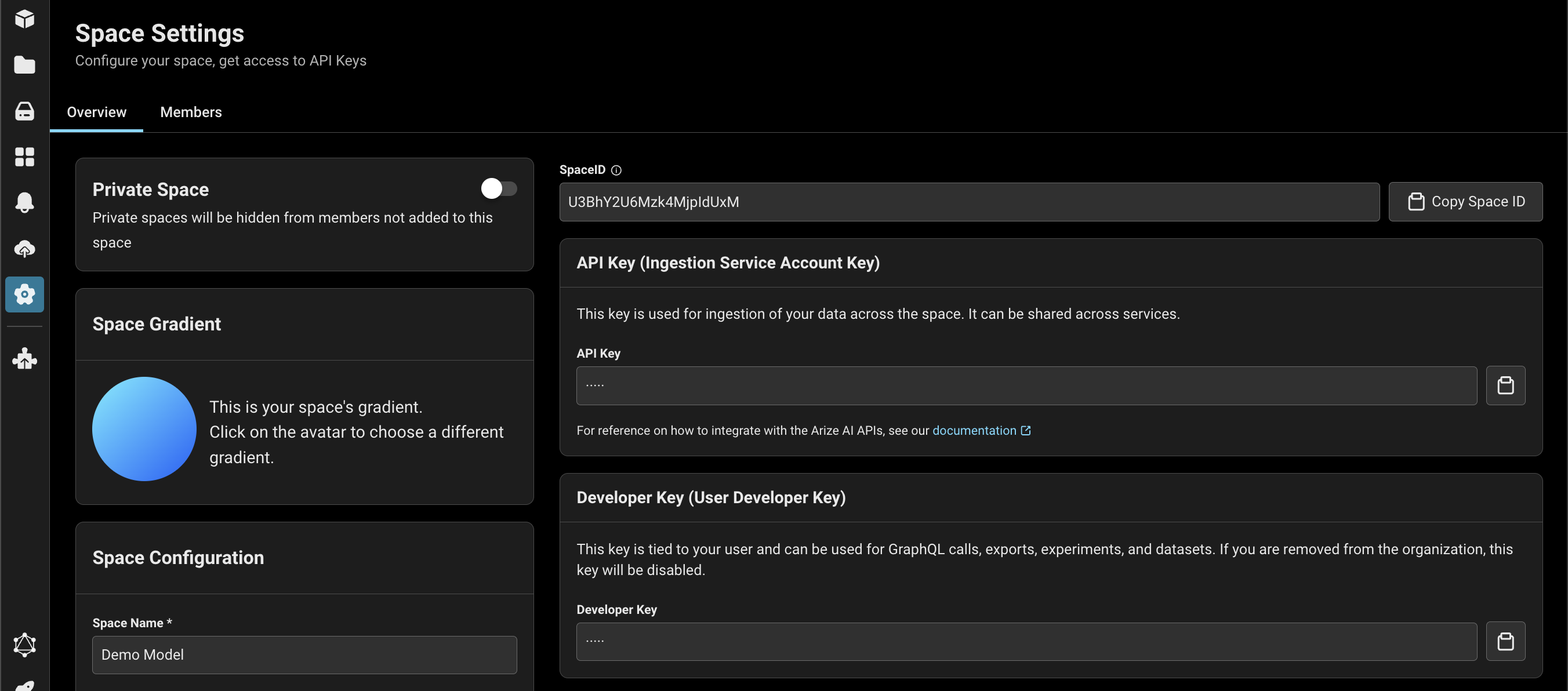
Sign up/ log in to your Arize account here. Find your space ID and API key. Copy/paste into the cell below.
Lastly, we use log_spans from the arize client to log our spans data and, if we have evaluations, we can pass the optional evals_dataframe.