

Llamaindex Tracing

This guide demonstrates how to use Arize for monitoring and debugging your LLM using Traces and Spans. We're going to build a simple query engine using LlamaIndex and retrieval-augmented generation (RAG) to answer questions about the Arize documentation. You can read more about LLM tracing here. Arize makes your LLM applications observable by visualizing the underlying structure of each call to your query engine and surfacing problematic spans of execution based on latency, token count, or other evaluation metrics.
In this tutorial, you will:
- Use opentelemetry and openinference to instrument our application in order to send traces to Arize.
- Build a simple query engine using LlamaIndex that uses RAG to answer questions about the Arize documentation
- Inspect the traces and spans of your application to identify sources of latency and cost
ℹ️ This notebook requires:
- An OpenAI API key
- An Arize Space & API Key (explained below)
Step 1: Install Dependencies 📚
Let's get the notebook setup with dependencies.
Step 2: Tracing your application
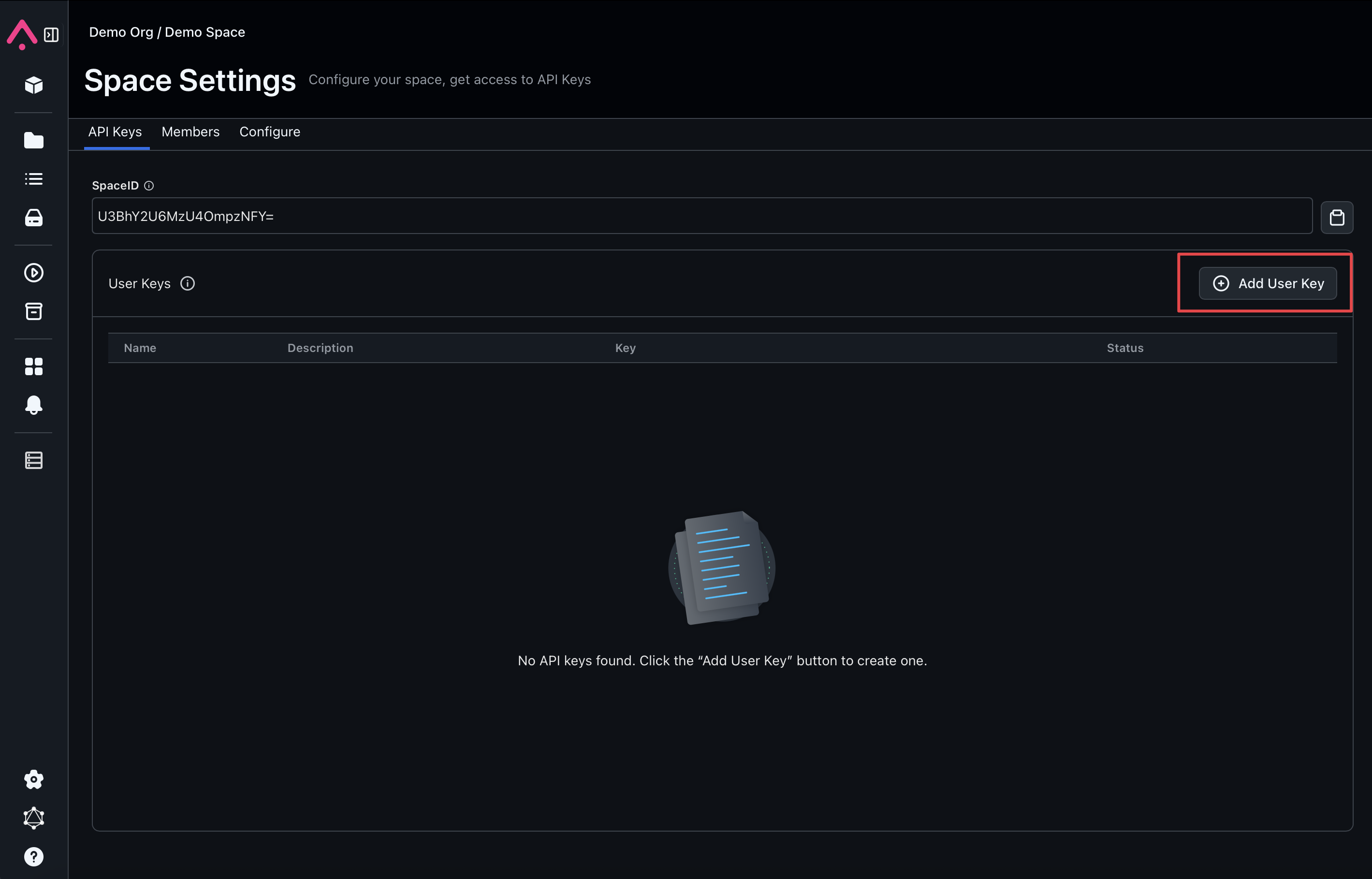
Copy the Arize API_KEY and SPACE_ID from your Space Settings page (shown below) to the variables in the cell below.
Step 3: Build Your Llama Index RAG Application 📁
Let's import the dependencies we need
Set your OpenAI API key if it is not already set as an environment variable.
This example uses a RetrieverQueryEngine over a pre-built index of the Arize documentation, but you can use whatever LlamaIndex application you like. Download the pre-built index of the Arize docs from cloud storage and instantiate your storage context.
We are now ready to instantiate our query engine that will perform retrieval-augmented generation (RAG). Query engine is a generic interface in LlamaIndex that allows you to ask question over your data. A query engine takes in a natural language query, and returns a rich response. It is built on top of Retrievers. You can compose multiple query engines to achieve more advanced capability.
Let's test our app by asking a question about the Arize documentation:
Great! Our application works!
Step 4: Use our instrumented query engine
We will download a dataset of queries for our RAG application to answer and see the traces appear in Arize.
Step 5: Log into Arize and explore your application traces 🚀
Log into your Arize account, and look for the model with the same model_id. You are likely to see the following page if you are sending a brand new model. Arize is processing your data and your model will be accessible for you to explore your traces in no time.

After the timer is completed, you are ready to navigate and explore your traces

